Quick Start
If you don't have have access to the docker image or don't have access to the android sdk repository, please contact us at info@silencelaboratories.com.
Here is how you can setup the Mobile SDK and perform MPC operations in less than a minute.

You will create a working MPC two-party setup, where the first party, an Android application interacts with Duo Server as a second party. We are providing a demo server endpoint for your convenience.
Prerequisites
For quick testing, the demo server is already deployed at demo-server.silencelaboratories.com. We are using this server for the quickstart guide.
The Cloud Verifying Key for the demo server is 01829099948d222f9731323900bc42bd3cc6f4e692f920705a9959b3e52378f188.
The Cloud Node Endpoint for the demo server is demo-server.silencelaboratories.com.
Setup the Mobile SDK (Android)
Create a new Android Studio project by following the official guide or use existing one.
Dependency Installation
Step 1: Create access token for the repository
- Get access to the repository https://github.com/silence-laboratories/silentshard-artifacts from the Silence Laboratories team.
- Create a personal access token at https://github.com/settings/tokens with the following scopes
checked[✓] to access the repository, and it's
associated GithubPackages
through gradle.
- Under
repo-> [✓]public_repo - Under
write:packages-> [✓]read:packages
We can leavewrite:packagesuntouched/unchecked as we only need read access - It will end up looking like this : Two items checked everything else unchecked. See below.
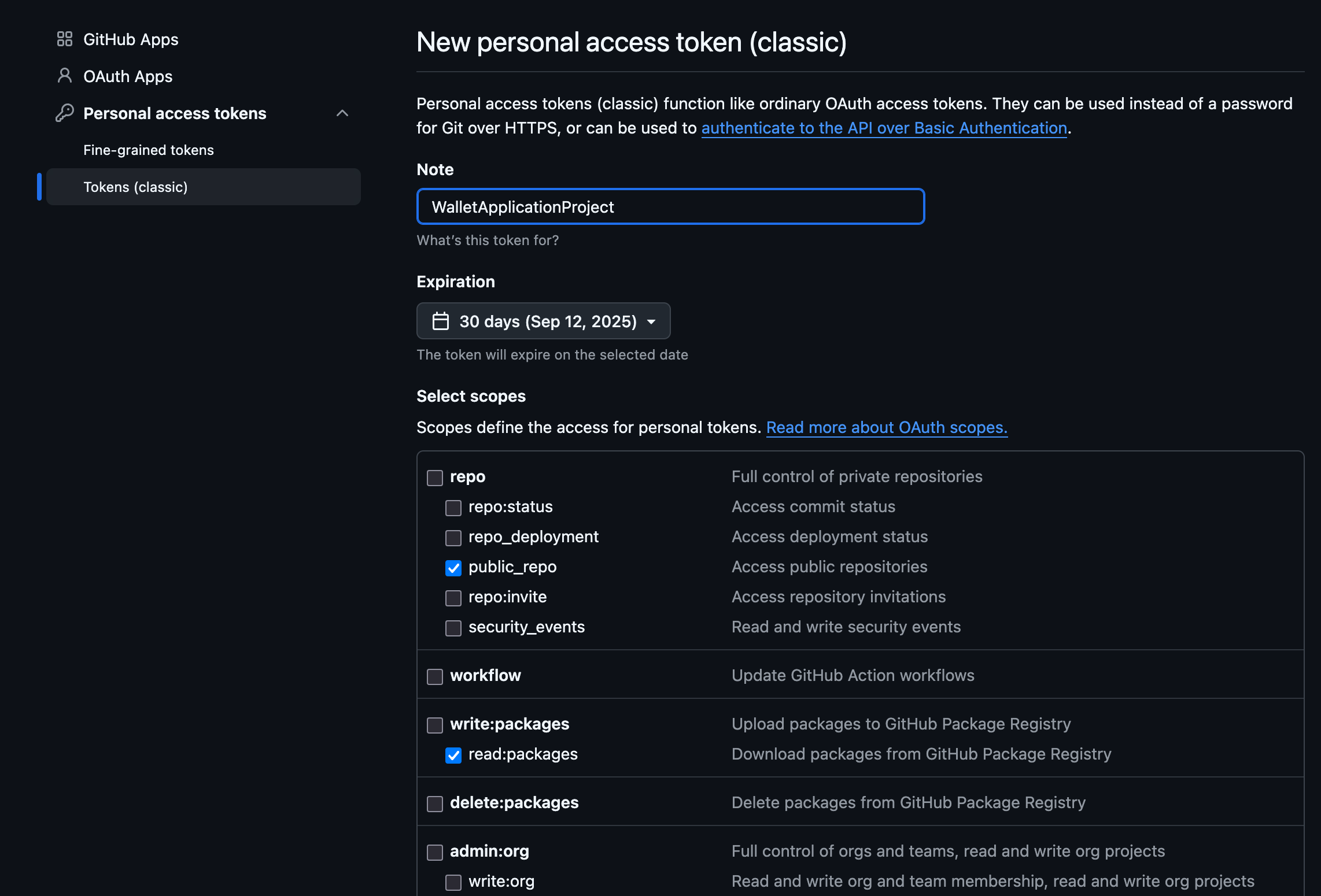
- Under
Step 2: Configure settings.gradle.kts
- Add the silentshard maven repo with the access credentials under the dependencyResolutionManagement -> repositories.
  dependencyResolutionManagement {
  repositoriesMode.set(RepositoriesMode.FAIL_ON_PROJECT_REPOS)
  repositories {
      google()
      mavenCentral()
      maven {
          url =
              uri("https://maven.pkg.github.com/silence-laboratories/silentshard-artifacts")
          credentials {
              // In production app we store private credentials outside of the files added to git.
              username = "github_username"
              password = "token_we_just_created"
          }
      }
      //Other private repos or other resolution configuration. Or maybe another maven repo.
  }
  }
Step 3: Configure app level build.gradle.kts
- Add the silentshard dependency in your dependencies block
  dependencies {
    implementation("com.silencelaboratories.silentshard:duo-android:1.0.0")
    //Your Other dependencies
    //..
    //..
  }
Step 4: Gradle-Sync
- Sync gradle with project files.
Session Creation
Instantiate DuoSession object, which could be used to perform all of the supported MPC operations such as keygen, sign etc.
import com.silencelaboratories.silentshard.duo.SilentShard
import com.silencelaboratories.silentshard.duo.DuoSession
import com.silencelaboratories.network.websocket.WebsocketConfig

object Constants {
    //Replace with your own
    const val CLOUD_NODE_URI = "demo-server.silencelaboratories.com"
    //Replace with your own
    //const val PORT = "8080"
}

//Other party verifying-key/public-key. Replace with your own Verifying Key.
val cloudPublicKey = "01829099948d222f9731323900bc42bd3cc6f4e692f920705a9959b3e52378f188"

//Create websocketConfig to let SilentShard use default WebsocketClient.
val websocketConfig = SilentShard.buildWebsocketConfig {
    withBaseUrl(CLOUD_NODE_URI)
    //usingPort(PORT)
    isSecureProtocol(false)
}

//Create storageClient instance to manage keyshare states
val storageClient = object : StorageClient<ReconcileStoreDao> {
    /**
     * Representing in-memory database. In real world it should be some SQL based DB or
     * secure storage or custom hardware. It's up to the implementation app's use-case.
     * */
    private val keyshareDaoSet = mutableSetOf<ReconcileStoreDao>()

    override suspend fun write(
        dao: ReconcileStoreDao,
    ) {
        if (!keyshareDaoSet.add(dao)) {
            keyshareDaoSet.remove(dao)
            keyshareDaoSet.add(dao)
        }
    }

    override suspend fun read(
        key: String,
    ): ReconcileStoreDao? {
        return keyshareDaoSet.find { it.keyId == key }
    }
}

//Create duoSession for EDSA algorithm
val duoSession: DuoSession = SilentShard.ECDSA.createDuoSession(
    cloudPublicKey, websocketConfig, storageClient
)
//or for EdDSA algorithm
//val duoSession: DuoSession = SilentShard.EdDSA.createDuoSession(
//    cloudPublicKey, websocketConfig, storageClient
//)
Run the MPC operations
After creating the session, you can perform MPC operations.
Key Generation
Generate MPC keyshares and return the client keyshare with keygen method.
// call this from a Dispatcher.IO coroutine
val result = duoSession.keygen()
result.onSuccess { keyshare ->
    // Use the generated keyshare : ByteArray
    Log.d("MPC", "Keyshare size: ${keyshare.size}")
}.onFailure { error ->
    // Handle the error
    Log.e("MPC", "Key generation failed: ${error.message}")
}
Signature Generation
Sign a message using the signature method.
val messageHash = "53c48e76b32d4fb862249a81f0fc95da2d3b16bf53771cc03fd512ef5d4e6ed9"
// call this from a Dispatcher.IO coroutine
val result = duoSession.signature(
    keyshare = keyshare,
    message = messageHash,
    derivationPath = "m" // This is the default, use your desired path here. For e.g 'm/1/2'
    )
result.onSuccess { signature ->
    // Use the generated signature
    Log.d("MPC", "Signature: ${signature.toHexString()}")
}.onFailure { error ->
    // Handle the error
    Log.e("MPC", "Signing failed: ${error.message}")
}
Complete Code Example
package com.silencelaboratories.silentshardduoquickstart

import android.os.Bundle
import android.util.Log
import androidx.activity.ComponentActivity
import androidx.activity.compose.setContent
import androidx.activity.enableEdgeToEdge
import androidx.compose.runtime.Composable
import androidx.compose.runtime.LaunchedEffect
import androidx.compose.ui.tooling.preview.Preview
import androidx.lifecycle.lifecycleScope
import kotlinx.coroutines.launch
import com.silencelaboratories.silentshard.duo.SilentShard
import com.silencelaboratories.silentshard.duo.DuoSession
import com.silencelaboratories.storage.StorageClient
import com.silencelaboratories.network.websocket.WebsocketConfig
import com.silencelaboratories.storage.silentshard.ReconcileStoreDao

class MainActivity : ComponentActivity() {

    object Constants {
        //Replace with your own
        const val CLOUD_NODE_URI = "demo-server.silencelaboratories.com"
        //Replace with your own
        //const val PORT = "8080"
    }

    //Other party verifying-key/public-key. Replace with your own Verifying Key.
    val cloudPublicKey = "01829099948d222f9731323900bc42bd3cc6f4e692f920705a9959b3e52378f188"

    //Create websocketConfig to let SilentShard use default WebsocketClient.
    val websocketConfig = SilentShard.buildWebsocketConfig {
        withBaseUrl(CLOUD_NODE_URI)
        //usingPort(PORT)
        isSecureProtocol(false)
    }

    //Create storageClient instance to manage keyshare states
    val storageClient = object : StorageClient<ReconcileStoreDao> {
        /**
         * Representing in-memory database. In real world it should be some SQL based DB or
         * secure storage or custom hardware. It's up to the implementation app's use-case.
         * */
        private val keyshareDaoSet = mutableSetOf<ReconcileStoreDao>()

        override suspend fun write(
            dao: ReconcileStoreDao,
        ) {
            if (!keyshareDaoSet.add(dao)) {
                keyshareDaoSet.remove(dao)
                keyshareDaoSet.add(dao)
            }
        }

        override suspend fun read(
            key: String,
        ): ReconcileStoreDao? {
            return keyshareDaoSet.find { it.keyId == key }
        }
    }

    //Create duoSession for EDSA algorithm
    val duoSession: DuoSession = SilentShard.ECDSA.createDuoSession(
        cloudPublicKey, websocketConfig, storageClient
    )
//or for EdDSA algorithm
//val duoSession: DuoSession = SilentShard.EdDSA.createDuoSession(
//    cloudPublicKey, websocketConfig, storageClient
//)

    override fun onCreate(savedInstanceState: Bundle?) {
        super.onCreate(savedInstanceState)
        enableEdgeToEdge()
        setContent {

            val messageHash = "53c48e76b32d4fb862249a81f0fc95da2d3b16bf53771cc03fd512ef5d4e6ed9"
            // call this from a Dispatcher.IO coroutine

            LaunchedEffect(Unit) {
                lifecycleScope.launch {
                    val result = duoSession.keygen()
                    result.onSuccess { keyshare ->
                        // Use the generated keyshare; Here using for signing
                        Log.d("MPC", "Keyshare size: ${keyshare.size}")

                        // call this from a Dispatcher.IO coroutine
                        val result = duoSession.signature(
                            keyshare = keyshare,
                            message = messageHash,
                            derivationPath = "m" // This is the default, use your desired path here. For e.g 'm/1/2'
                        )
                        result.onSuccess { signature ->
                            // Use the generated signature
                            Log.d("MPC", "Signature: ${signature.toHexString()}")
                        }.onFailure { error ->
                            // Handle the error
                            Log.e("MPC", "Signing failed: ${error.message}")
                        }

                    }.onFailure { error ->
                        // Handle the error˛
                        Log.e("MPC", "Key generation failed: ${error.message}")
                    }
                }
            }
        }
    }
}
Once the app launches, check your logcat logs to see the key generation and signing process updates in real-time.
Optional: Run your own Duo Server
Install Docker
- Linux
- macOS
- Windows
curl -fsSL https://get.docker.com | sh
Download and install Docker Desktop from the official website.
Alternatively, you can install using Homebrew:
brew install --cask docker
Download and install Docker Desktop from the official website.
Make sure to enable WSL 2 backend during installation for better performance.
Install OpenSSL
- Linux
- macOS
- Windows
# Ubuntu/Debian
sudo apt-get update && sudo apt-get install openssl
OpenSSL is usually pre-installed on macOS. To install or update using Homebrew:
brew install openssl
Download and install from the official OpenSSL website.
Alternatively, you can install using Chocolatey:
choco install openssl
Or using Windows Package Manager:
winget install OpenSSL.OpenSSL
Login to Docker
- Login to docker using Personal Access Token(PAT) and your username.
Guide to generate GitHub Personal Access Token
- Go to GitHub Personal Access Tokens
- Click on "Generate new token", we are using the classic token for this guide.
- Enter a name for the token
- Select the "read::packages Download packages from GitHub Package Registry" scope.
- Generate the token.
Learn more about GitHub Personal Access Tokens here.
echo <PAT> | docker login ghcr.io -u <username> --password-stdin
Start the Server
For local setup, let's use this example docker-compose.yml
services:
  duo-server:
    image: ghcr.io/silence-laboratories/dkls23-rs/duo-server:v4
    command: /usr/local/bin/sigpair-node
    environment:
      RUST_LOG: info
      LISTEN: 0.0.0.0:8080
      DEV_MASTER_SIGN_KEY: /run/secrets/duo-signing-master-key
      FILE_STORAGE_URL: file:///data/
    ports:
      - 8080:8080
    volumes:
      - duo-server-data:/data
    secrets:
      - duo-signing-master-key

volumes:
  duo-server-data:

secrets:
  duo-signing-master-key:
    file: ${MESSAGE_SIGNING_KEY:-./party_0_sk}
The docker compose file is configured to use the party_0_sk file in the root of the project. party_0_sk is the random bytes used as seed to create the server private key.
Create the party_0_sk file with random bytes in the root of the project.
openssl rand 32 > party_0_sk
Now let's start the server by running
docker compose up
If everything was setup correctly, the server should be running with these logs
Attaching to duo-server-1
duo-server-1  | WARN: The dotenv file is not set
duo-server-1  | 2025-09-16T09:59:09.200234Z  INFO sigpair_node: Creating SimpleStorage
duo-server-1  | 2025-09-16T09:59:09.201975Z  INFO sigpair_node: Party VK <YOUR_CLOUD_VERIFYING_KEY_HEX_STRING>
duo-server-1  | 2025-09-16T09:59:09.202413Z  INFO sigpair_node: listening on 0.0.0.0:8080
Great! The server is now setup to perform MPC actions with our mobile.
In logs you will notice a hex string of length 66 (33 bytes). This is the YOUR_CLOUD_VERIFYING_KEY_HEX_STRING which will be used by server to verify the requests from other party (In this case, our mobile app).
The YOUR_CLOUD_NODE_ENDPOINT is the endpoint of the server. In this case, it is 0.0.0.0:8080 for ios and 10.0.2.2:8080 for android. Also you can use the IP address of your machine if you are running the server on your machine.
Second argument of the CloudWebSocketClient constructor is a boolean indicates if the connection is WSS or WS. Use true for secure connection, otherwise use false for local server.